Set up a team and publish a survey
This guide takes you from a survey with responses to a published team: you choose what splits your team, invite people into each group, and publish. Each person then gets an email with their own results, and you follow up, publish again, or withdraw from the survey's Delivery page.
Before you start
- Your organization is on the Pro or Enterprise plan. A client's team needs Enterprise.
- To set up the team, you're a department admin: you can manage users in the department.
- A survey in the department has at least one usable dynamic parameter or single-choice question. If the list in step 1 is empty, see Which parameters and questions can define a team.
- You have the email addresses of the people who should see results. Names are optional.
The examples use Levana Café, with regions and branches.
Who does what
| Task | Who can do it |
|---|---|
| Set up the team, change levels, invite, move or remove people, change What each level sees, add a new group, put people back | Department admins: people who can manage the department's users |
| Review and publish, publish again, remind, send again, preview, withdraw | Admins and Users in the survey's department. Read Only members can't. |
A researcher with the User role publishes from the survey's results screen and follows up on its Delivery page. They don't need the team page.
1. Choose what splits your team
- Open Shared dashboards in the left menu and select your department.
- On the Team tab, select Set up team.
- On What splits your team?, pick 1 to 3 rows, in order. The first one you pick is the top level.
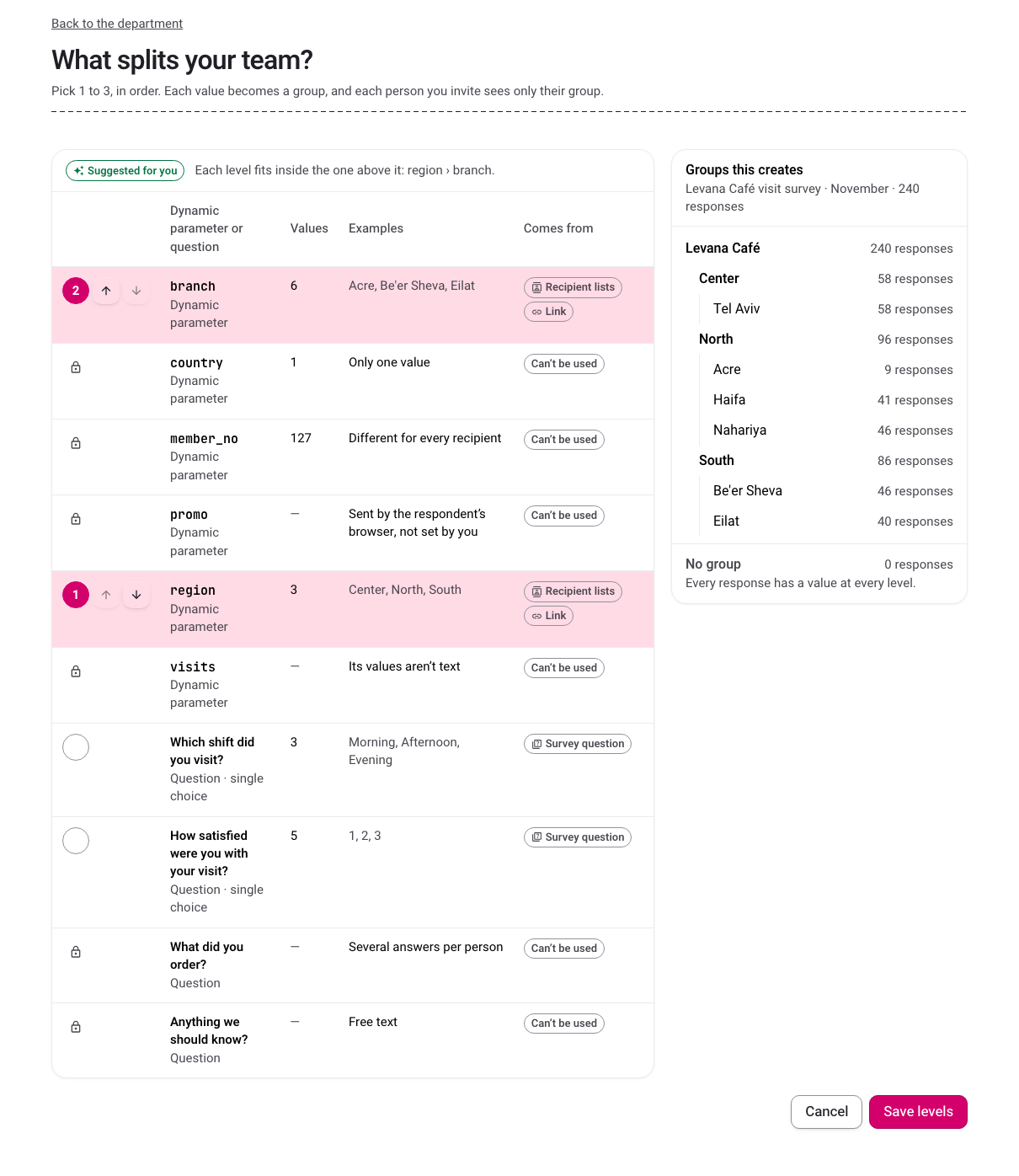
The list shows every dynamic parameter and single-choice question in the department's surveys, with how many values each has and where it comes from. Rows that can't be used show Can't be used and the reason. Use the arrows beside a picked row to change its position, or clear it and pick again.
Suggested for you pre-picks levels that fit inside each other, here region then branch. The Groups this creates panel previews the groups and their response counts before you save. A line named No group counts answers that have no value for a level.
Select Save levels.
With a question, the respondent chooses their own group. For a level where that matters, a recipient column or a separate link per group is the stronger choice.
2. Invite people into each group
The team page lists every group with its response count. Select Invite by email on a group's row, then type or paste addresses and press Enter.
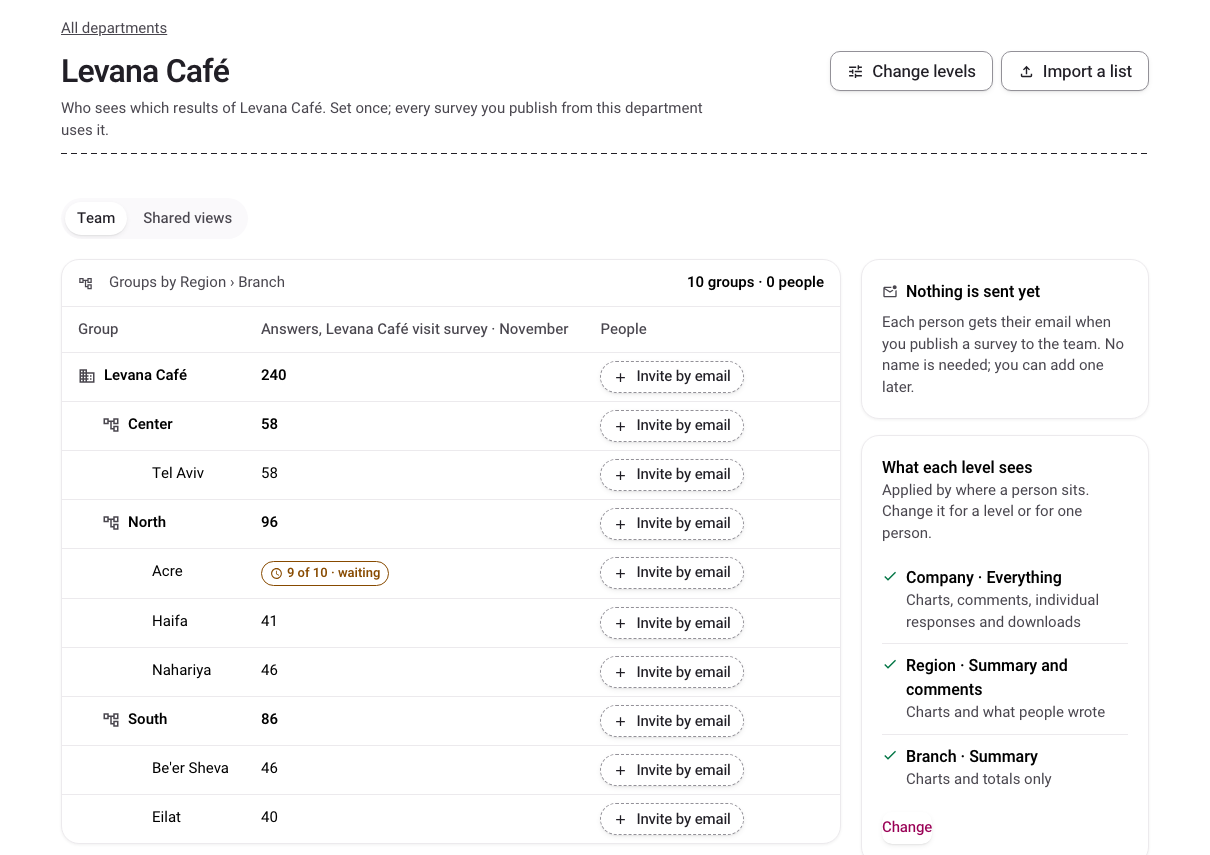
Each address is checked and reported on its own, and valid addresses in the same paste are still added.
| Message | What it means |
|---|---|
<address> isn’t a valid email address | The text isn't an email address, so it isn't added. |
<address> appears more than once — added once | The paste repeated it. One copy is added. |
<address> is already in this group | The person is already in this group. |
<address> is already in <group> | The person sits in a different group. Re-adding never moves anyone. |
A team can have up to 2,000 people. Remove someone before adding more. | The addresses would take the team past 2,000 people, so none of them is added. |
Separate addresses with a comma, a semicolon, a space, or a new line. A name isn't required: a person without one shows by email address and is greeted with "Hi," in their email. Add a name or role from the person's row with Add a name or role.
To move or remove someone, open the More actions menu on their row and choose Move to another group or Remove from the team. Removing someone ends their access to every wave at once. To add many people from a spreadsheet, use Import a list.
Adding people sends no email. People get theirs when you publish, or when you publish again.
Once a wave is out, the card beside the team says when newcomers get their email:
- New people are emailed when you publish again: the latest wave is live and emails people. People you add now don't get those results yet: "Choose “Publish again” on them to email them."
- New people are added when you publish again: the latest wave was published without email. "Choose “Publish again” on the results of survey, then send to them from the delivery page."
- New people get their email when you publish again: the latest wave was withdrawn.
Choose what each level sees
The What each level sees card lists an access level for each level. Select Change to edit it, along with the other team settings. The dialog says: "These settings apply to every wave you publish to this team."
| Setting | What it does | Default for a new team |
|---|---|---|
<level> sees | Everything, Summary and comments or Summary, for each level | Everything for the company, Summary and comments for the next level, Summary for the third |
| Smallest group for numbers | Groups with fewer responses don't show charts and totals. Choose 3, 5, 10 or Other. | 5 |
| Smallest group for written answers | Comments and individual responses show only for groups at least this big. Choose 5, 10, 20 or Other. | 10 |
| Email language | Hebrew or English, for the email and the page it opens | The language of the person who first saved the levels |
| Contact address | An address people can write to about the results | Empty |
The access levels give:
| Access | What the person gets |
|---|---|
| Everything | Charts, comments, individual responses and downloads |
| Summary and comments | Charts and what people wrote |
| Summary | Charts and totals only |
Other takes any whole number from 3 to 1000. The written-answer minimum can't be smaller than the number minimum: if it is, the dialog says Choose at least the smallest group for numbers. A team set up before both minimums existed keeps its number minimum and needs 10 responses for written answers, or its number minimum if that's higher. Levana Café raised its number minimum to 10. See Small groups, privacy and code sign-in for what each minimum protects.
Choose the email language
A new team's emails are in the language of the person who first saves its levels: Hebrew if their Pollarix interface is in Hebrew, English for any other language. Change it with Email language in the same dialog.
The link in the email opens the results page in the same language. Someone who signs in with their own Pollarix account sees the page in their account's language, and anyone can switch it with the globe button.
Add a contact address
Type an address under Contact address. "People who get the results see it on their page and in the email. Leave it empty to show no address." An address that isn't valid shows Enter a valid email address.
With an address, the bottom of each dashboard reads "A question about these results? Write to Levana Café at questions@levana-cafe.example." and links to it. The results email ends with "A question about these results? Write to questions@levana-cafe.example." Without one, the dashboard reads "A question about these results? Write to Levana Café." and the email has no contact line.
People without a group
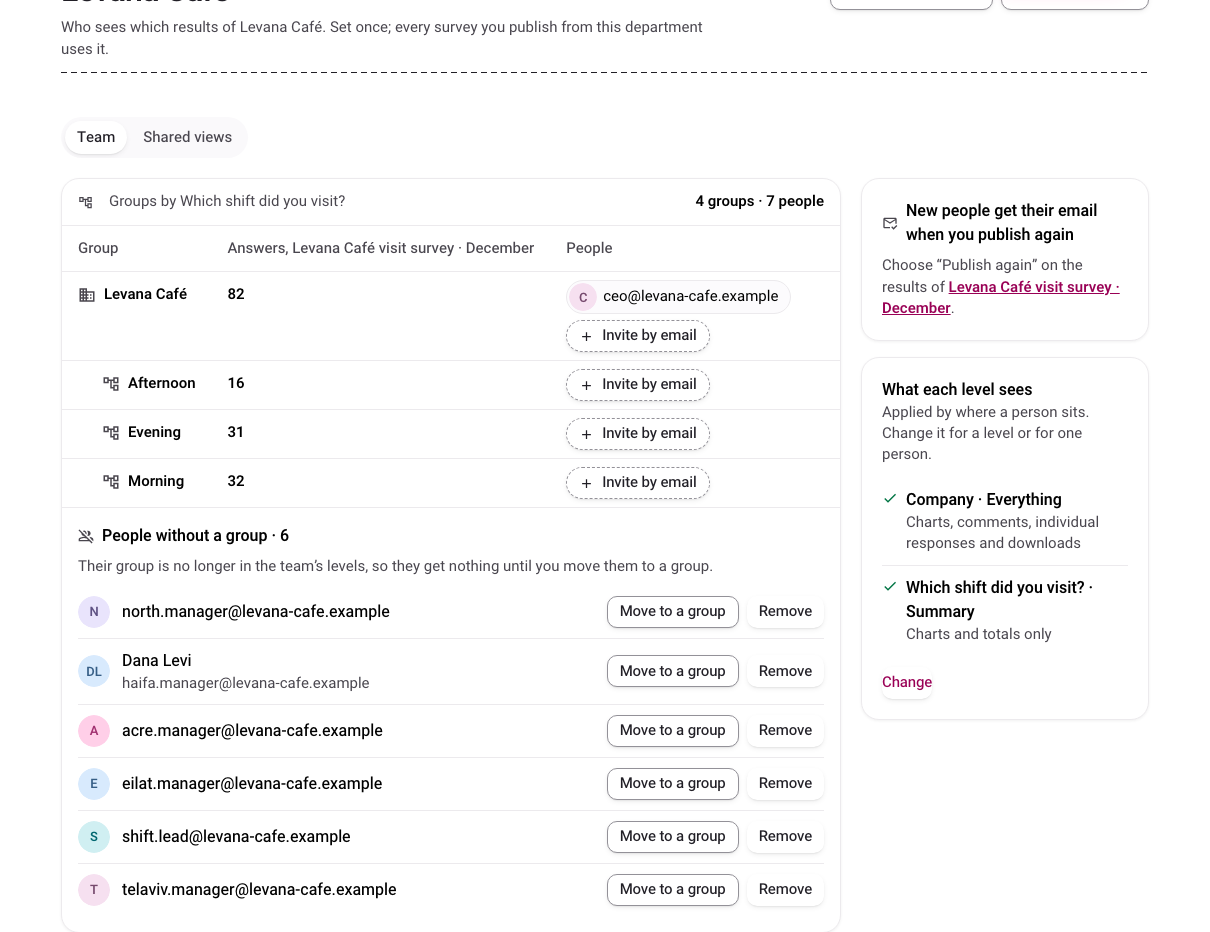
If a change of levels removes someone's group, they are listed under People without a group. They receive nothing until you choose Move to a group or Remove, or put them back in a group with the same name. See Put people back in their groups.
3. Review and publish
- Open the survey's results screen. A card asks whether to publish the survey to the team.
- Select Review and publish.
- Check Who gets what and the publish options below it.
- Select Publish to followed by the number of people, such as Publish to 6 people.
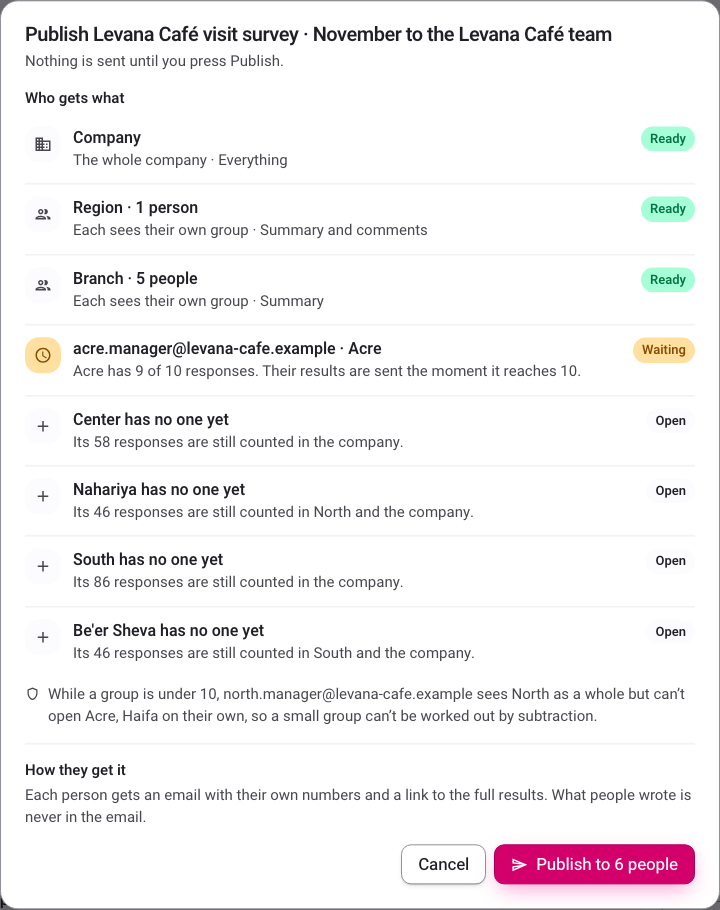
Nothing is sent until you publish. Each group shows one of three states.
- Ready: the group has people and enough responses for numbers. They get their email now.
- Waiting: the group has fewer responses than the number minimum. In the example, Acre has 9 of 10, so its manager's results are sent the moment it reaches 10.
- Open: nobody is invited yet. Its responses still count in the group above and in the company.
Each person gets an email with their own numbers and a link to the full results. What people wrote is never in the email.
Choose the publish options
The dialog has three options. Each one applies to this wave only.
| Option | What it does |
|---|---|
| Wave name | "It names this wave in the email and at the top of everyone’s results." It starts as the survey's name, is required, and takes up to 128 characters. The dialog's title follows what you type. |
| Main score under Headline numbers | "A rating question. It comes first in each email and on each results page." It starts on Automatic: the first rating question. |
| Second number under Headline numbers | "A yes/no question, shown as a percentage, or an NPS question." It starts on Automatic: the first yes/no question, or else the first NPS question. |
| Email everyone now, under How they get it | On by default. Turn it off to publish without sending any email. |
A headline picker appears only when the survey has a question of its kind. Your choice leads each email, the top of each dashboard, and the comparison with the group above and the company. If a chosen question later leaves the survey, the headline goes back to the automatic choice.
Error: A headline question you picked is no longer in this survey, so it is back to Automatic. Check it and publish again.
Cause: Someone removed the question from the survey while the dialog was open.
Fix: Check the picker, which now shows the automatic choice, and publish again.
Publish without email
With Email everyone now off, the dialog says: "Nobody is emailed, now or later, until you send reminders from the Delivery page or publish again with this switched on."
People still get access when you publish, so you can check the dashboards with Preview as first. A waiting group reads "Their results open the moment it reaches 10, without an email." On the Delivery page, each person reads Not emailed yet until you send their link.
Changed in your data
When a later survey brings new values, the dialog opens with a Changed in your data section.
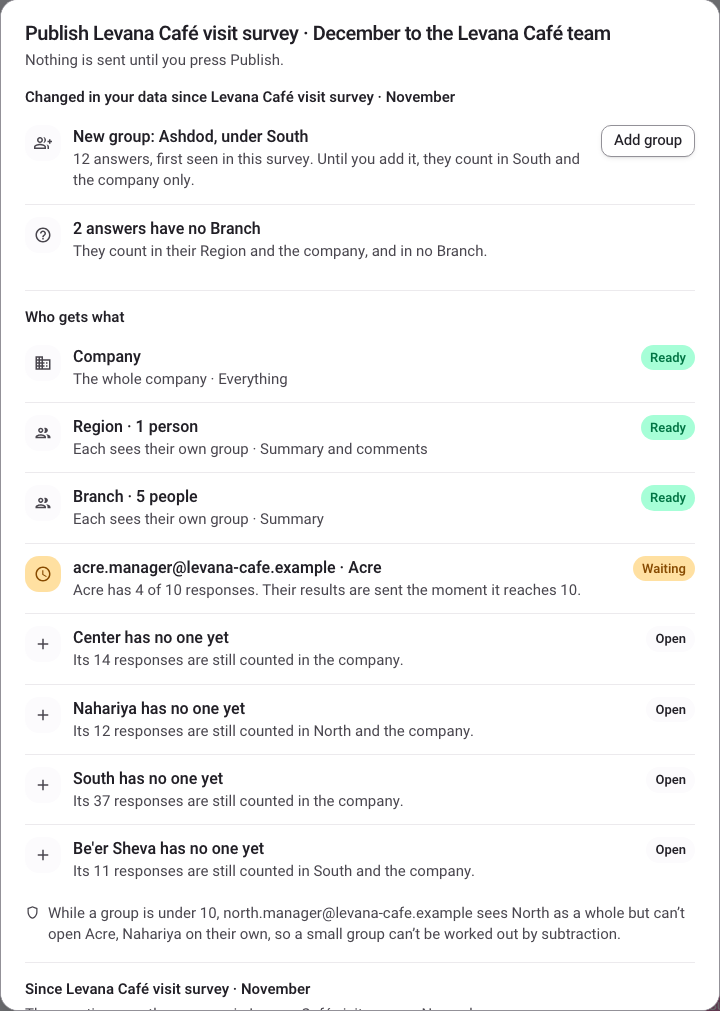
| Notice | What to do |
|---|---|
| New group: Ashdod, under South | A value appeared that the team doesn't have. Until a department admin selects Add group, its answers count in South and the company only. |
| A group is no longer in the survey | Its choice was removed from the question that splits your team, so the group gets no new answers. Its people stay on the wave: they get it when the group has enough responses, as Ready or Waiting shows. The group stays on the team until you change levels. |
| 2 answers have no Branch | They count in their Region and the company, and in no Branch. Nothing to fix. |
A new group is added only when someone presses Add group. Nothing changes your team on its own. If you aren't a department admin, the button isn't shown: you can publish now and ask an admin to add the group.
Error: The question “Which shift did you visit?” that splits your team is missing from this survey (or no longer single choice). Publishing is blocked until it is back or you change levels.
Cause: The survey you're publishing doesn't have a question your team uses as a level.
Fix: Add the question back to the survey, or ask a department admin to select Change levels and pick other levels.
4. Follow up on the Delivery page
On the survey's results screen, the card now reads Published to the Levana Café team with how many people viewed. Select Delivery to see who received the wave.
The page lists each person with their group, when they were sent the wave, and when they viewed it. "“Viewed” counts a person who opened their results after confirming their email. Email opens are not counted: they are unreliable."
| You want to | Do this |
|---|---|
| Nudge people who were emailed and haven't viewed | Select Remind, which names the count, such as Remind 4 people. "Reminders are on their way. Each person gets at most one every 12 hours." People who were never emailed are not counted here. |
| Email one person again | Select Send again on their row. |
| Email everyone who was never emailed | Their rows read Not emailed yet. Select Send to 6 people, which names the count, or Send now on one row. The page then says "Sent to 6 people." While anyone is not emailed yet, Send to is the main button and Remind sits beside it. |
| See what someone sees | Open the More actions menu on their row and select View as. |
A waiting person's row reads Sends at 10 responses, or Opens at 10 responses on a wave published without email. The waiting for 10 responses count includes only those people; a person whose group already has enough responses reads Sending soon and isn't counted there.
Daily email limit
An organization sends up to 3,000 results emails a day, counted by the day in Israel. Publishing still works at the limit: people beyond it stay waiting, and the next day they are emailed.
Error: Your organization sent its 3,000 results emails for today. Try again tomorrow; anyone still waiting is emailed then.
Cause: A reminder or Send again would go past today's 3,000 results emails for your organization.
Fix: Try again tomorrow. A reminder near the limit sends to as many people as fit and skips the rest.
Withdraw a wave
Withdraw a wave when results went to the wrong people or the survey was published too early.
- On the survey's results screen, select Delivery.
- Select Withdraw.
- The dialog asks Withdraw November visits from the Levana Café team? and explains: "Nobody on the team can open these results any more, including anyone who has them open now. Their links stop working at once, and nothing is emailed. To share them again, use Publish again: everyone gets an email with a new link."
- Select Withdraw results.
The page title then ends with withdrawn from the Levana Café team, and a note reads "Withdrawn on Nov 15. Nobody on the team can open these results. Publish again to email everyone a new link." Remind and Withdraw disappear, and each row keeps its sent and viewed dates as history.
Elsewhere, the results screen reads "Withdrawn from the Levana Café team on Nov 15", and the team page and the All departments page mark the latest wave Withdrawn. A person who opens an old link sees These results aren’t available. Later waves don't compare with a withdrawn wave.
Publish again
Add people at any time. To email only the newcomers, open the survey's results and select Publish again. The dialog says: "Already published. Publishing again sends to anyone new and updates what the others see."
The wave name, headline numbers and Email everyone now start from what you chose last time. With Email everyone now on, publishing again also emails anyone on the wave whose current link was never emailed, once.
On a withdrawn wave, the dialog says instead: "This wave was withdrawn on Nov 15. Publishing it again emails everyone on it a new link; the old links stay closed." Publishing reopens the wave for everyone on it with new links. With Email everyone now off, nobody is emailed and each row reads Not emailed yet until you send.
For the next survey, repeat step 3. The team is set once and every survey you publish from the department uses it.
Change levels later
Select Change levels on the team page and pick other rows. Before you save, Pollarix shows what changes: how many groups retire, how many people lose their group, which groups move, and which are new.
When you save, groups retire rather than disappear. Their people lose access at once and appear under People without a group until you place them. Earlier waves keep their old levels, so Pollarix doesn't compare across a wave whose levels differ.
Put people back in their groups
For example, Levana Café changes its levels from region and branch to branch only. The North manager and the four branch managers lose their groups and appear under People without a group. The row of each branch manager now says where they'd go, such as Put back in Haifa. The North manager gets no suggestion, because no group is named North any more.
A suggestion needs a group with exactly the same name as the old one:
- If the old group's parent, such as its region, is still in the team, the group must sit under that parent. A Haifa under another region is never suggested.
- A group with that name on the same level as the old one wins.
- With none on that level, a single group with that name on any level matches. This is how region and branch to branch only finds each branch.
- With no group of that name, or several on other levels, the person gets no suggestion.
To place everyone with a suggestion, select Put 4 people back. "Each goes to the group with the same name as their old one." Pollarix then reports "Put 4 people back in their groups." and "1 person still needs a group. Move them yourself."
Pollarix moves only the people whose suggestion you saw. If the team changed in the meantime, for example someone else moved a person, that person stays in the list.
Each person moved gets the access of their new level. Their old link stopped working when they lost their group, so they need a new one:
- If the wave was published with Email everyone now on, Pollarix emails each of them a new link within about 15 minutes, as long as your organization is under its daily email limit.
- If it was published with the switch off, their row reads Not emailed yet until you send it with Send to on the Delivery page.
Moving one person with Move to a group works the same way. Move anyone left with Move to a group.
Next steps
- Which parameters and questions can define a team - Add a parameter or question when the list is empty
- Open your dashboard from the email - What your managers do with the email
- Small groups, privacy and code sign-in - What the two minimums protect