Open your dashboard from the email
If a colleague added you to a team, you get an email with the results for your group, such as your branch or region. This guide shows how to sign in with a code and read your dashboard. You need the email, and you don't need a Pollarix account or a password.
What the email contains
The email comes from the organization that invited you. It shows your group's name, up to three headline numbers (with the change since the previous survey when there is one), a short takeaway, and a button that opens the full results. What people wrote in their answers is never in the email.
The email is in your team's language, Hebrew or English, and the button opens the results page in the same language. If your organization added a contact address, the email ends with "A question about these results? Write to" followed by that address.
You receive an email when your organization publishes a survey to your team, or publishes again after adding you. If your group has too few responses yet, the email waits and arrives once the group is large enough. Your organization can also publish without email and send your link later.
Sign in with a code
- In the email, select the button that opens your results.
- On Check it’s you, Pollarix sends a 6-digit code to the address that received the email. Enter the 6 digits.
- Optionally, tick Stay signed in on this phone for 30 days.
- Select Open my results.
Prefer an account? Under the code box, or continue with Google or Microsoft takes you to the Pollarix sign-in instead of the code. Use an account whose verified email is the address that received the email. Signed in to your own account, you see the page in your account's language.
| Detail | Value |
|---|---|
| Code length | 6 digits |
| Code is valid for | 10 minutes, and works once |
| Wrong tries per code | 5, then the code stops working |
| New code | Send a new code, available after 60 seconds |
| Stay signed in ticked | Signed in on that device for 30 days |
| Stay signed in not ticked | Signed in for 12 hours |
That code isn’t right. You typed a wrong code. The message tells you how many attempts are left.
This code has expired. Send a new one. The code is over 10 minutes old. Select Send a new code.
Too many wrong tries with this code. Send a new code. You typed 5 wrong codes. Select Send a new code.
Too many wrong codes. This link is locked for up to 24 hours. Need the results sooner? Ask whoever sent them to you. Sign-in pauses for your link after 15 wrong codes within 24 hours.
Too many tries. Wait up to an hour, then try again. You tried many times in a short while. Wait, then try again.
Open the link from your email You opened the page without the email's link. Open the email and select the link again.
Read your dashboard
Your dashboard opens on your group. The title is your group's name, such as Eilat, followed by the survey, the number of responses, and when it was updated. The top of the page names the organization that sent it, and may show its logo.
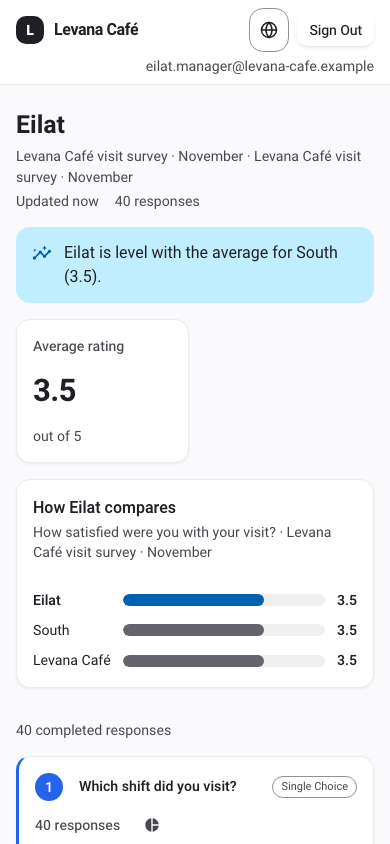
- A one-line headline says how your group compares, for example that Eilat is level with the average for South.
- A comparison block puts your group next to the group above it and the whole company.
- Charts for each question follow. Which charts, comments and downloads you get depends on the access your organization gave you: Everything, Summary and comments or Summary.
- A Filters menu lets you look one level down. A region manager can filter by branch. The menu lists only the groups you are allowed to open.
- Sign Out ends your session. The globe button changes the language.
At the bottom, a line tells you who to write to with questions, such as "A question about these results? Write to Levana Café." When your organization added a contact address, the line includes it as a link: "A question about these results? Write to Levana Café at questions@levana-cafe.example."
What you can't see, and why
You see your own group and the groups below it, and nothing else. A group with too few responses is hidden so that nobody can work out an individual's answers. In a breakdown, a hidden group shows Hidden so no one can be identified.
A hidden group can also hide a neighbor. In the Levana Café example, Acre has 9 responses, under Levana Café's minimum of 10. The North manager sees North as a whole and can open Nahariya, but not Haifa or Acre, because showing Haifa would let anyone subtract it from North and work out Acre. Small groups, privacy and code sign-in explains this.
Comments and individual responses can need more responses than charts. Your group may show its charts while its comments stay hidden until more people answer.
You may also see:
| Message | Meaning |
|---|---|
| Not enough responses yet | Results appear once enough responses match. |
| This needs at least 10 matching responses. | Comments, individual responses or search need more responses than your selection has. The charts can still show. |
| This selection is hidden | The filter you chose picks too few responses. Clear the filters. |
| These results aren’t available | Sharing was stopped or changed, the results were withdrawn, or your access ended. If you got a newer email for the same results, use its link. Otherwise, ask the person who shared the results. |
Next steps
- Small groups, privacy and code sign-in - Why groups are hidden and why there is no password
- Share results with your teams - How shared dashboards work