Set survey quotas by response group
To collect 50 answers from each of three branches, set a quota of 50 for each branch and a total of 150 responses. A full group stops taking new entries while the other groups keep collecting. You need an Advance, Pro or Enterprise plan, permission to edit the survey, and a channel with no responses or sent invitations.
Before you start
- A question or a column that defines the groups. Use a single-choice, yes or no, or number question in your survey, or a column in the recipient file of your invitations, such as region.
- A channel with no responses. Email invitations, SMS invitations and web links can follow quotas, but only while they have no responses or invitations. Create the channel first, and send invitations after quotas are on.
- Other channels close. While quotas are on, channels that don't follow them stop taking responses.
How quotas work
Each group gets a target. When a group reaches its target, it's full. New people from that group see a thank-you message, and the other groups stay open.
- The group question comes first. When groups come from a survey question, people answer it on a short screen, Questions before you start, and the answer carries into the survey. When groups come from a recipient file column, people are placed by their value in that column, sent with their invitation.
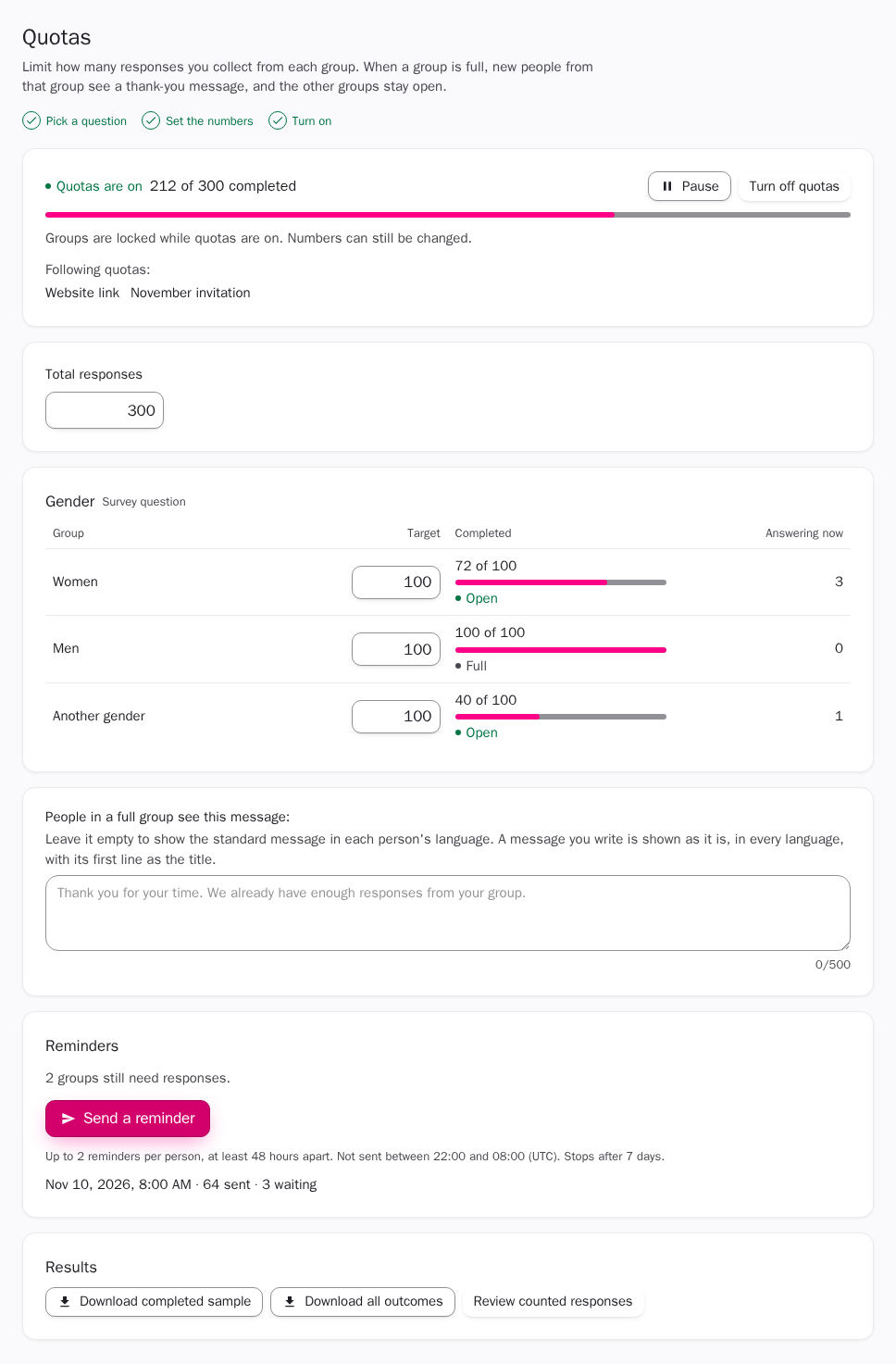
- Places are held, not reserved forever. Someone who starts the survey holds a place in their group for 30 minutes. The quota table shows held places under Answering now.
- A total caps everything. Total responses is the most you collect in all. The groups can add up to a different number.
Set up quotas
-
Open the survey and go to the Share tab.
-
In the Limits card, find A number for each group and select Set up.
-
Select Add a quota.
-
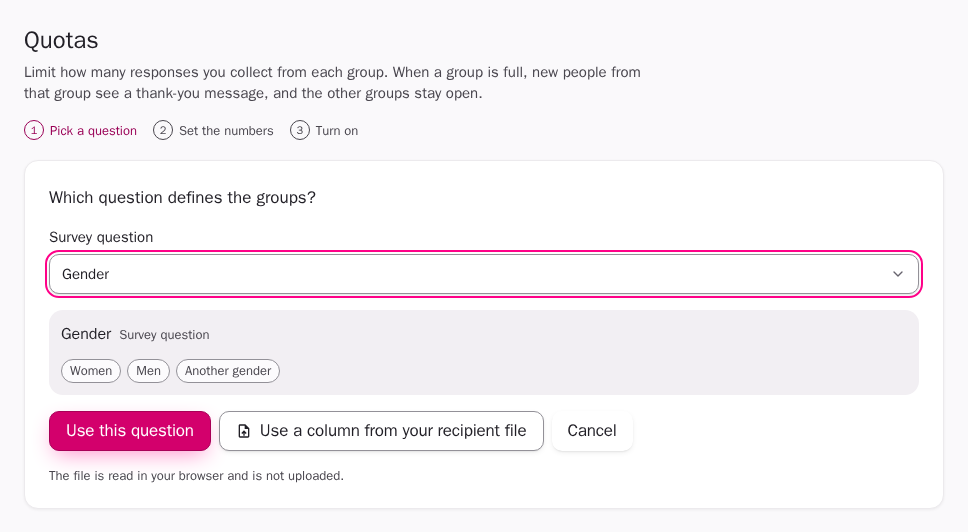
Choose the question that defines the groups and select Use this question. To use a column instead, select Use a column from your recipient file, choose the CSV or Excel file you invite from, and pick the column. The file is read in your browser and isn't uploaded.
-
Enter Total responses and a Target for each group. To share the total equally, select Split evenly.
-
Review Ready to turn on. It lists the channels that will follow your quotas and the channels that close while quotas are on.
-
Optionally, write the message people in a full group see (next section).
-
Select Turn on quotas.
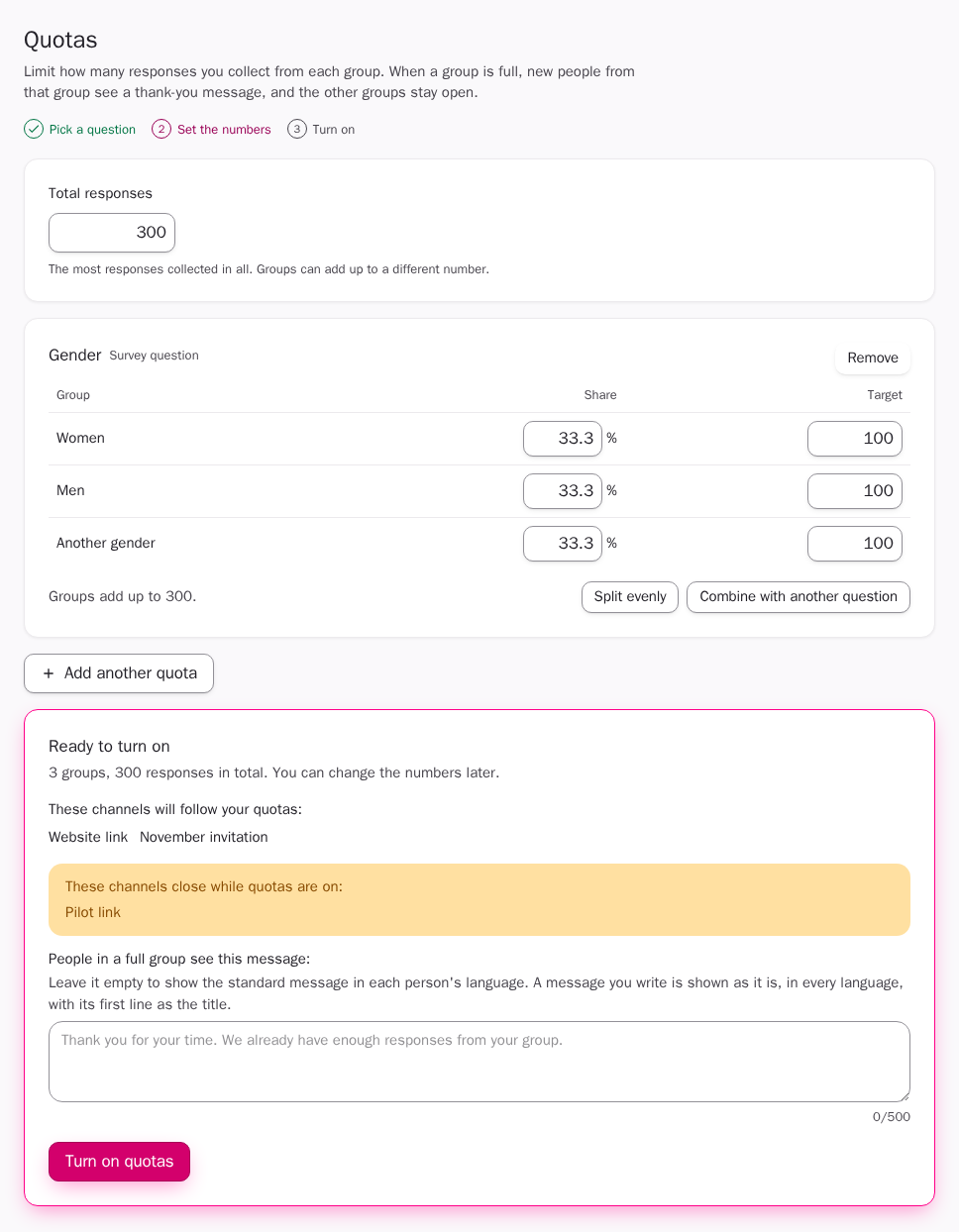
To set targets for combinations, like women in the north, select Combine with another question. To track a second, separate split, select Add another quota. For a number question, choose 3 age groups, 5 age groups or Custom ranges.
Message: No question in this survey can define groups yet.
Cause: The survey has no single-choice, yes or no, or number question.
Fix: Add one of those questions to the survey, or select Use a column from your recipient file.
Message: Create an email invitation or a web link first.
Cause: The survey has no email invitation, SMS invitation or web link that can follow quotas.
Fix: Create one on the Share tab, then come back to quotas. Send its invitations after quotas are on.
Write the full-group message
People whose group is full see a thank-you message instead of the survey. You choose what it says in the box under People in a full group see this message:, both before you turn quotas on and while they're on.
| What you enter | What people see |
|---|---|
| Nothing | The standard message in each person's language: "Thank you for your time. We already have enough responses from your group." |
| Your own text | Your text exactly as written, in every language. The first line is the title, and each following line is a paragraph under it. |
For example, this message:
Your group is full
Thank you for answering. We already have enough responses from your group.
shows Your group is full as the title and the second line under it.
- Up to 500 characters. The counter under the box shows how many you've used.
- One message for every language. A message you write isn't translated, so write it in the language your respondents use, or leave the box empty to keep the standard message in each person's language.
- Right-to-left text works. A Hebrew or Arabic message is laid out right to left, even on a survey in English.
Change numbers or the message while quotas are on
- On the Share tab, find A number for each group in the Limits card and select Manage.
- Change a Target, Total responses or the message.
- Select Save Changes.
Changes apply to the next person who opens the survey. The groups themselves are locked while quotas are on; only the numbers and the message can change.
Message: A target can't be lower than the responses already counted or being answered.
Cause: The new target is lower than the group's completed responses plus the places held right now.
Fix: Enter a target at least that high. The quota table shows both numbers under Completed and Answering now.
Message: Someone changed these quotas. Reload to see their version.
Cause: Another person saved a change to these quotas after you opened them.
Fix: Select Reload, check their change, and make yours again.
What respondents see
| Situation | What the person sees |
|---|---|
| Their group has room | The survey |
| Their group is full | The full-group message |
| Their 30 minutes ran out and their group filled before they finished | The full-group message when they submit; their answers don't count toward the group |
| Every remaining place in their group is held by someone else | "All available places are currently held. Try again shortly." |
| Quotas are paused | "This survey is paused. Please check again later." |
Pause, review and turn off quotas
- Pause stops anyone new from starting through the channels that follow quotas. Select Resume to open them again.
- Send a reminder emails people who were invited and haven't finished, in groups that still need responses. Each person gets up to 2 reminders, at least 48 hours apart, never between 22:00 and 08:00 in your time zone, and reminders stop after 7 days.
- Review counted responses lists the responses that count. Select Don't count for a test or a duplicate. Its place opens again for someone else in the same group, and the response stays in your results.
- Turn off quotas closes the channels that follow them for good, and other channels open again. You can still download the results.
- Download completed sample gives you the responses that count. Download all outcomes adds every place that was held and didn't end up counting: places that expired and responses you stopped counting.
If your plan changes to one without quotas, quotas that are on keep running. You can still pause them, turn them off and download the results, but you can't change the numbers or the message.